
Webhooks: react when WhatsApp happens
Get a call to your URL the moment a message arrives.
In this video
Watch on YouTubeSteps
- 1
In your account, open API and go to the Webhook tab.
- 2
Paste the address that should hear about it into Insert webhook address URL: your own server, or a Make or Zapier scenario. Click Add Webhook.
- 3
Turn on the events you want. Under Message events, for example New Message Received, Message Reaction, Poll Vote or Reply To My Message.
- 4
Under Chat events, for example Participant Joined via Link, Participant Left Group or Group Name Changed.
- 5
From now on, each time one of those events happens, Blueticks sends the details straight to your URL.
Key points
- Each webhook has its own event toggles, so you can send different events to different places.
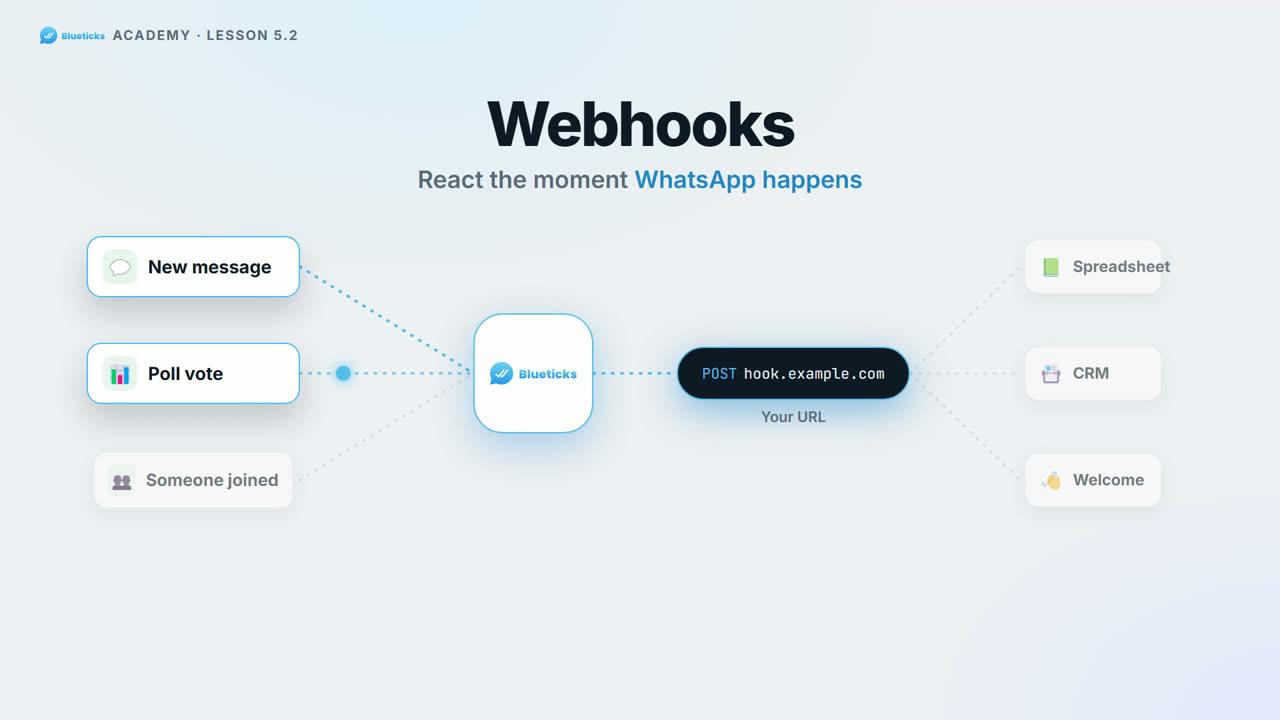
- Ideas: a new message lands in your spreadsheet, a poll vote updates your CRM, a new group member gets a welcome.
- Using Make or Zapier? The Webhook tab links a step-by-step guide for each.
- Webhooks live on the same API page as your API keys. Lesson 5.1 shows how to send a message with the API.
Full transcript
Want something to happen the moment WhatsApp does? A new message, a poll vote, someone joining your group? That's what webhooks are for.
Open API in your account, and go to the Webhook tab. Paste the address that should hear about it. Your own server, or a Make or Zapier scenario. Click Add Webhook.
Now pick your events.
Message events, like a new message received, a reaction, a poll vote, or a reply to your message. And chat events, like someone joining, leaving, or a group name change.
From now on, each time one happens, Blueticks sends the details straight to your URL.
So a new message can land in your spreadsheet, a poll vote can update your CRM, and a new group member can get a welcome.
Need help with Make or Zapier? There's a step by step guide for each, linked right there. Connect your first webhook, at app.blueticks.co.