
Agent settings: the six that matter
Understand exactly what your agent will do, and change it in seconds.
 Video coming soon
In this video
- 0:00Open your agent in Form view
- 0:141. Who it answers
- 0:272. When it wakes up (time triggers)
- 0:373. Where it can send
- 0:454. Human takeover and operator chat
- 1:015. What it knows
- 1:116. What it can use (integrations)
Steps
- 1
Open your agent and switch the view to Form. Everything the builder chat filled in is here to change by hand.
- 2
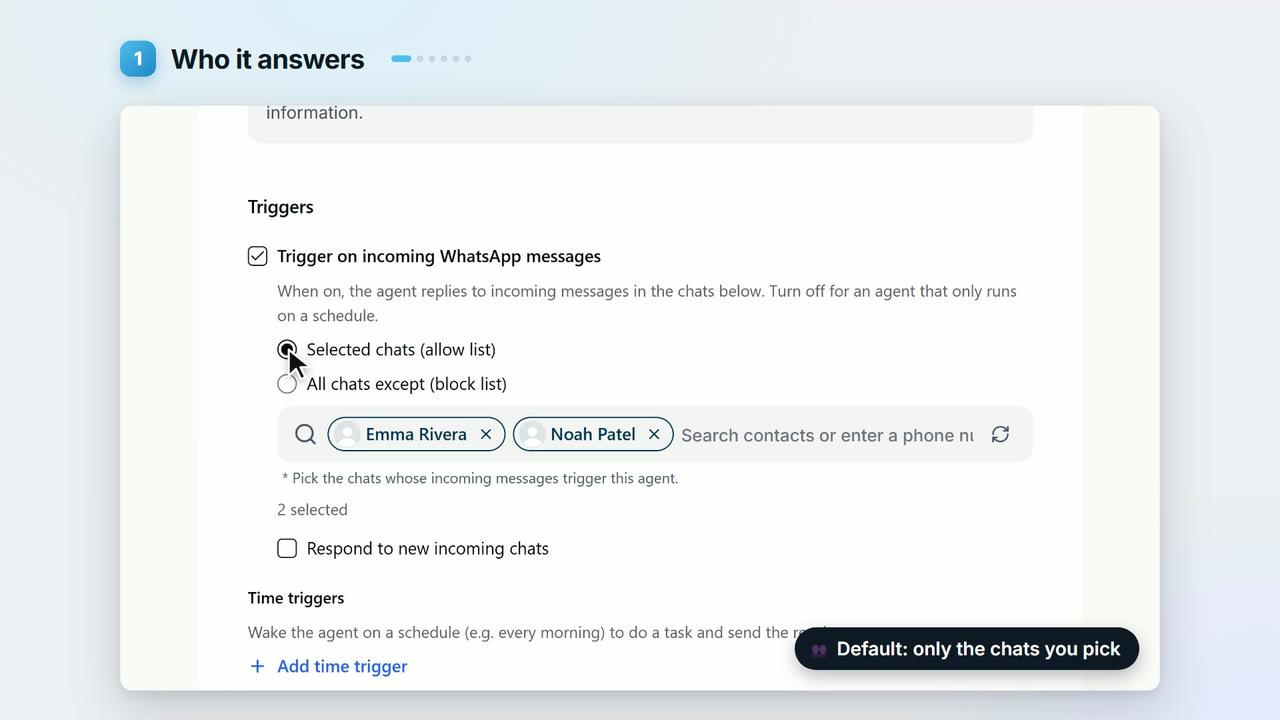
Who it answers. Under Triggers, the default is Selected chats (allow list). Choose All chats except (block list) to answer everyone but the chats you block. Tick Respond to new incoming chats to answer new people too.
- 3
When it wakes up. Under Time triggers, click Add time trigger, pick a schedule (Daily at 09:00 by default), describe the task, and choose where the result goes.
- 4
Where it can send. Under Allow sending messages to, the default is The same chats it's triggered in (receive & respond). To let it send to other chats, choose Selected chats (allow list) or All chats except (block list).
- 5
You stay in control. Under Human takeover, Allow human takeover and Take over automatically when I write in the chat are both on from the start: write in a chat yourself and the agent pauses there. Pick an Operator chat to get its notices and questions.
- 6
What it knows. Paste your prices and policies into Knowledge (optional), or click Upload to add files. Tick Answer only from the knowledge above to keep it on script.
- 7
What it can use. Under Integrations (MCP), click + Add integration, pick an app (Google Calendar, Google Sheets, Gmail and many more), connect it, and tick only the tools it needs.
- 8
Click Save changes. The button shows Saved.
Key points
- Every integration tool starts off. The agent can only use the tools you tick.
- When you take over, the agent stays quiet in that chat until you hand it back: type
continuein your operator chat, or open Conversations and release the chat. There is no timer. - Time triggers appear once the agent is saved. Each one has a Run now button to try it.
- The view switch offers Chat, Form or Both side by side.
Full transcript
Your Blueticks agent does exactly what its settings say. Here are the six that matter. Open your agent, and switch to Form. The builder chat filled all of this in, and you can change any of it by hand. One. Who it answers. By default, only the chats you pick. Or flip it: answer everyone, except the chats you block. Tick Respond to new incoming chats, and it answers new people too. Two. When it wakes up. A time trigger runs it on a schedule, like every morning at nine, to do a task and send you the result. Three. Where it can send. Normally, only back to the chat it's answering. You can open that up to other chats you choose. Four. You stay in control. Human takeover is on from the start. Write in a chat yourself, and the agent pauses there until you hand it back. Pick an operator chat, and the agent sends its questions to you there. Five. What it knows. Paste your prices and policies, or upload files. Tick Answer only from the knowledge above, to keep it on script. Six. What it can use. Add an integration, like your calendar, and tick only the tools it needs. Every tool starts off. Click Save changes, and you're done. Fine-tune your agent, at app.blueticks.co.