
Message Planner: schedule, drag, repeat
Schedule a message, move it with a drag, and make it repeat.
 Video coming soon
In this video
- 0:00Open Message Planner
- 0:11Schedule a new message
- 0:25Drag to reschedule
- 0:36Make a message repeat
- 1:00Move a repeating message
Steps
- 1
Click Message Planner in the left menu.
- 2
Click New message. Add who it’s for in Search contacts or enter phone number and type your message. Use Add files, Templates or Set a Poll if you need them.
- 3
Click pick a date and pick a time, then click Schedule Send. The message appears on your calendar.
- 4
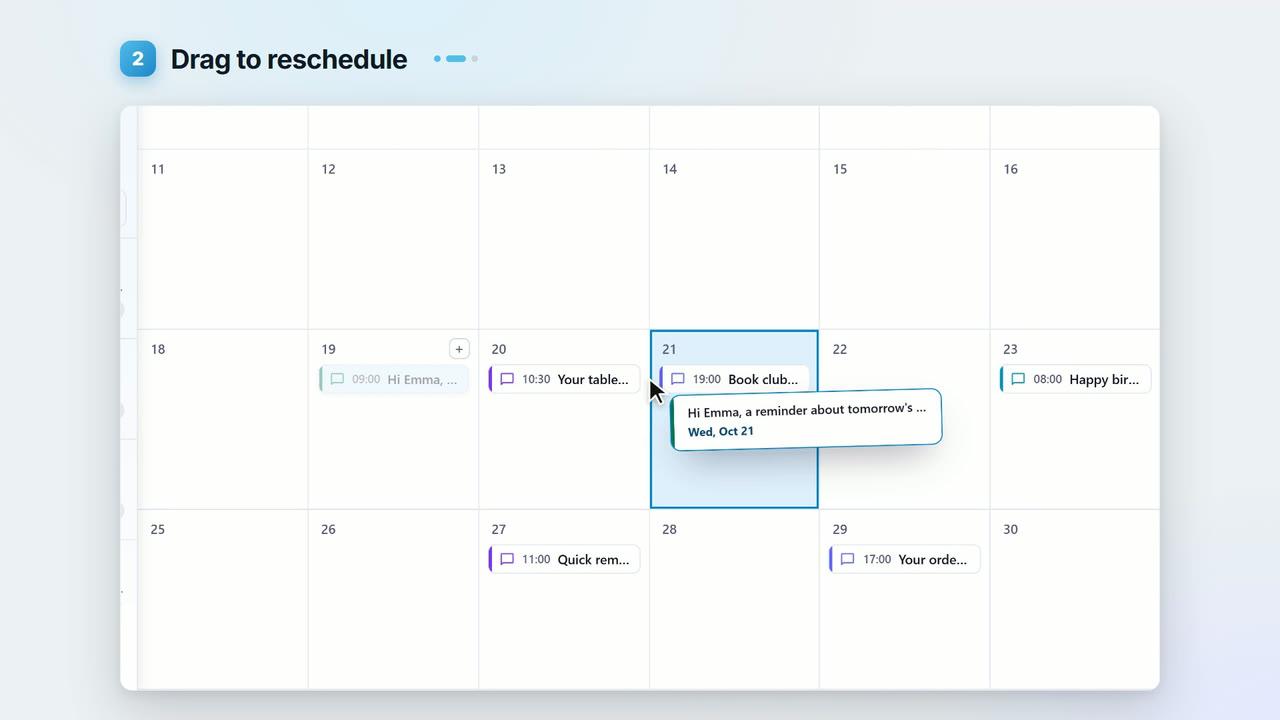
To reschedule, drag it to another day. In Month view it keeps its time. In Week or Day view, drop it on a time slot to change the hour too.
- 5
To repeat a message, pick the date and time, then click Set recurrence. In Custom recurrence, set Repeat every, Repeat on and Ends (Never, On a date, or After a number of occurrences), then click Done.
- 6
Drag one message of a series and choose Only this message or This message and all following.
Key points
- Switch between Month, Week and Day views. On a phone, the planner shows a list of upcoming sends.
- Set recurrence needs a date and time first.
- Blueticks sums up a repeating message in one line, such as “Repeats every week on Tuesday”, so you know exactly when it goes out.
- Calendar items show their status with icons: a green check for sent, a red alert for didn’t send, ↻ for a repeating message. Hover an item to see its details.
- To delete, right-click a message, or select it and press Delete. For a series, choose Only this message, This message and all following or The whole series.
Full transcript
Plan your WhatsApp messages on a calendar, and Blueticks sends each one on time. Here's how. Open Message Planner. Every message you've planned, in one view. Click New message. Pick who it's for, and type your message. You can add a file, or even a poll.
Choose the date and time, and click Schedule Send. There it is, on your calendar.
Plans changed? Just drag it. Drop it on another day, and it keeps its time.
In week view, drop it on a new time slot to move the hour too.
Now, a message that repeats. Pick the date and time, then click Set recurrence. Repeat every one week, on Mondays and Thursdays. Choose when it ends: never, on a date, or after a number of sends. Click Done.
Blueticks sums it up in one plain sentence, so you know exactly when it goes out. And every one shows up on your calendar.
Drag one of those, and Blueticks asks: only this message, or this one and all the ones after it.
Plan your week, at app.blueticks.co.