
Connect WhatsApp: on this computer or always on
Know which connection you need and link your WhatsApp in about a minute.
 Video coming soon
In this video
- 0:00Two ways to connect: on this computer (free)
- 0:27Always on (Pro, 7-day free trial)
- 0:41Link your phone: QR code or phone number
- 0:57The Connections page and how to choose
Steps
On this computer (Free)
- 1
Under On this computer, click Start free, then click Add to Chrome to add Blueticks.
- 2
Open WhatsApp Web. If it shows a QR code, scan it once with your phone. When your chats appear, you’re connected.
Always on (Pro)
- 3
Click Set up always-on, then Start my free 7-day trial. No card needed.
- 4
Click Create my always-on connection and wait for the QR code.
- 5
On your phone, open WhatsApp and tap Settings → Linked devices → Link a device, then point your phone at the code.
- 6
Rather not scan? Click Link with phone number instead. (On the WhatsApp Connections page, it’s the Link with phone number tab.)
Key points
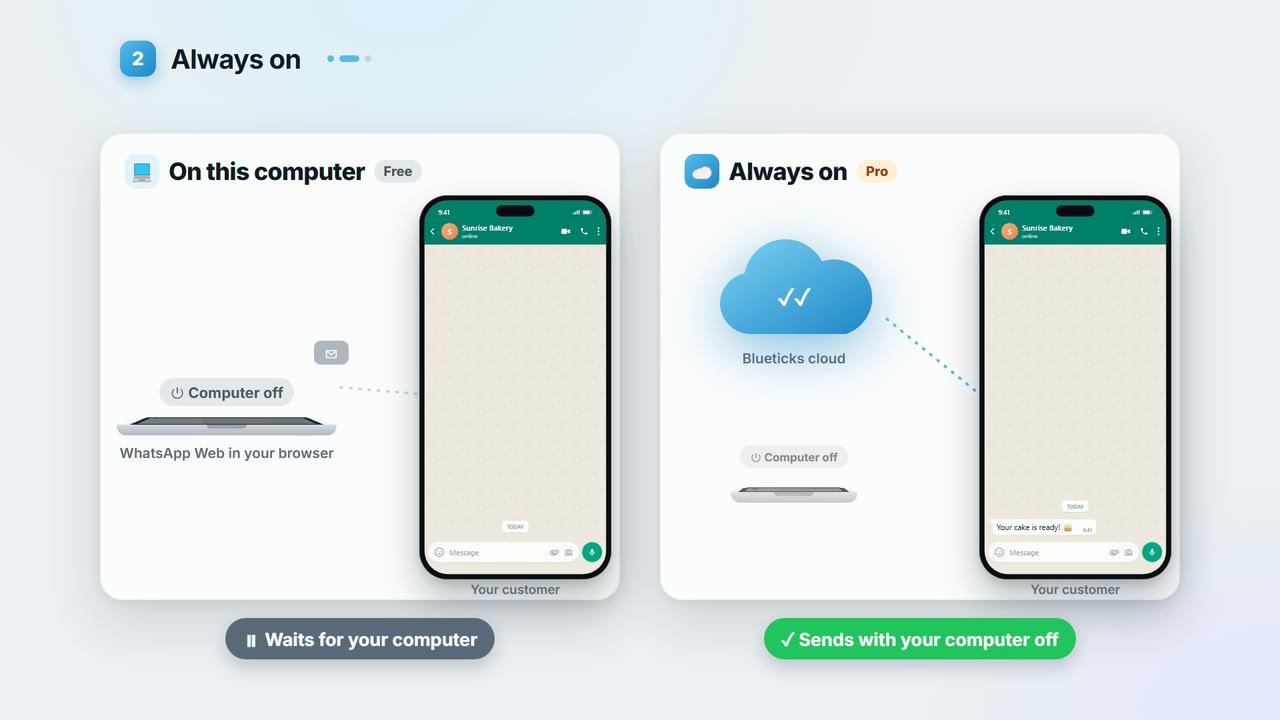
- On this computer, messages are sent only while WhatsApp Web is open in your browser.
- Always on runs your WhatsApp in the Blueticks cloud instead of your browser, so messages go out with your computer off.
- On Android, Linked devices is in the ⋮ menu.
- The QR code refreshes automatically, so there is no need to reload.
- Every connection is listed on WhatsApp Connections in your account, with its status.
- Not sure? Start free on this computer and switch to always on whenever you need it.
Full transcript
Blueticks sends from the WhatsApp number you already use. There are two ways to connect it. Here's how to pick.
Option one: on this computer. It's free. Add Blueticks to Chrome, and open WhatsApp Web. If it shows a QR code, scan it once with your phone. When your chats appear, you're connected.
The one rule: messages go out only while WhatsApp Web is open in your browser.
Option two: always on. Your WhatsApp runs in the Blueticks cloud instead of your browser, so messages still go out with your computer off.
It's part of Pro, and you can try it free for seven days. No card needed.
Click Create my always-on connection. Then on your phone, open WhatsApp, tap Settings, Linked devices, Link a device, and point it at the code. Rather not scan? Link with your phone number instead.
Every connection shows up on the Connections page, with its status.
Not sure? Start free on this computer, and switch to always on whenever you need it.
Connect your WhatsApp at app.blueticks.co.