

Test Message to Your Own Number Not Showing? Check 'Message Yourself'
A message sent from your number to your own number does not arrive in a normal chat. Here is where it goes, how to confirm Blueticks sent it, and how to test with a second number.
Daniel Roth4 min read
On this page
You schedule a test message to your own number, the time passes, and nothing seems to arrive. Before you assume the send failed, check one place: the Message yourself chat inside WhatsApp, the one Blueticks's own setup calls the You chat.
Why does a test to my own number not show up like a normal message?
Blueticks sends from the WhatsApp number you connected. If you pick that same number as the recipient, the message is sent from your number to your number. It goes to the self-chat WhatsApp calls Message yourself, which is the chat with your own name at the top of your contact list. In Blueticks's onboarding it is called the You chat, so look for either name. It does not appear in a conversation with a second person, because there is no second person.
That self-chat is a real WhatsApp chat, but you may never have opened it, so it is easy to miss. Open it directly: start a new chat and choose your own name from the contact list.
One thing not to rely on: a notification. We have not found an official WhatsApp page that says how the self-chat notifies, so check the chat itself instead of waiting for a ping.
How do I check whether Blueticks actually sent it?
Look at the message in Blueticks, not only in WhatsApp.
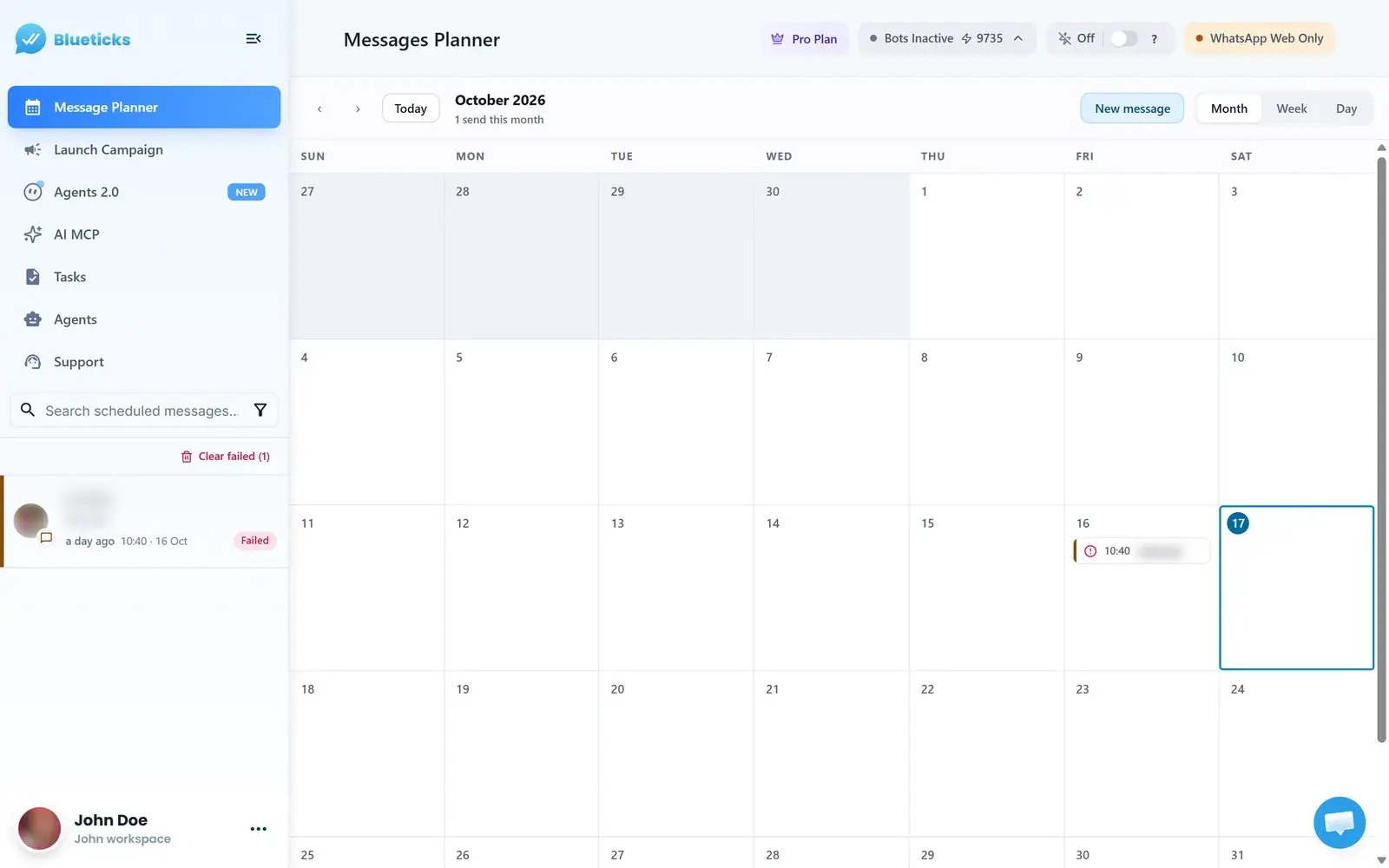
- Open the Message Planner.
- Hover the message to see when it sends, who it goes to and its status.
- A green check mark means it was sent. A red alert icon means it did not, and the details show Failed.
If it is green and you can see it in Message yourself, the setup works. If it is red, see My message didn't send or scheduled WhatsApp messages not sending.
Which number is actually sending?
This is the usual source of confusion when you use an always-on connection. The always-on connection is linked to one specific WhatsApp number, and that is the number everything goes out from. If you think of your "business number" as a different one, a test to that number is still a test from the connected number.
To see what is connected, click the WhatsApp status chip at the top of the app, or open My Account, then WhatsApp Connections. The My WhatsApp Connections list shows each connection with its status and when it was last seen. If the number is not the one you meant to send from, connect the right one there.
Blueticks uses the same idea in its own first-run test: the onboarding step schedules your first message to your own number by default, with a note that it is the number you just connected, so you can watch it arrive. You can pick anyone else from the list instead.
A better test
For a test that behaves like a real send, schedule it to a different person or a second phone number you control. Then you see it arrive in a normal chat, the way a customer would. Keep the self-chat for quick checks of timing and formatting.
Whichever you use, schedule the test a few minutes out so you can watch the status change. The scheduling guide has the full routine, and phone or computer off explains which connection sends when your devices are off.
Quick checklist
- Open Message yourself (the You chat, under your own name in the contact list) and look there first.
- Confirm the status in the Message Planner: green check mark = sent.
- Check WhatsApp Connections to see which number is connected.
- For a realistic test, send to someone else.