

How to Schedule WhatsApp Messages on WhatsApp Web (Free, Right Inside Your Browser)
Schedule WhatsApp messages free, right inside WhatsApp Web. QR linking, the exact workflow, recurring and offline sends — no native scheduler exists yet.
Daniel Roth7 min read

On this page
- Can you schedule messages on WhatsApp Web?
- How do you schedule a WhatsApp Web message for free, step by step?
- How do you link your phone to WhatsApp Web with the QR code?
- Why is WhatsApp Web better than your phone for scheduling messages?
- What happens to a scheduled message when you close the WhatsApp Web tab?
- How do you schedule WhatsApp Web messages without leaving the browser open (Pro offline gateway)?
- Free vs. paid: which WhatsApp Web scheduler do you need?
- Is WhatsApp building a native scheduler?
- FAQ
You have a message you need to send later. A birthday note for 7 a.m. A payment reminder for Monday. A "we're open" ping to a customer the moment your shop unlocks. You are already at your computer, already in WhatsApp Web, and you do not want to set a phone alarm to remind yourself to tap send like it's 2009.
Here is the good news, and the honest version of it. WhatsApp is reportedly building a native "Schedule Send" option, but it is still in development — not yet available to users, and not in a public beta you can opt into. There is no native scheduler in WhatsApp Web today. So if you want to schedule a WhatsApp Web message right now, on any account — and especially if you want recurring sends, a queue of multiple messages, or delivery while your computer is asleep — you need a scheduler that lives in the browser. This guide shows you exactly how to do that, for free, without leaving your browser tab.
Can you schedule messages on WhatsApp Web?
Yes — with a browser extension. A native scheduler is reportedly in development at WhatsApp, but it is not yet available to users and there is no native "send later" in WhatsApp Web today. To schedule on WhatsApp Web on any account, install a browser extension like Blueticks. It adds a clock icon to the chat box for one-time and recurring sends.
WhatsApp Web is the version of WhatsApp that runs at web.whatsapp.com inside Chrome, Edge, Firefox, or another Chromium browser. It mirrors the chats on your phone, which means it is the perfect place to type carefully, paste links, and line up messages to go out later.
Out of the box, WhatsApp Web shows you a plain send button and nothing else. A native scheduler is reportedly in the works, but it is not available to users yet, so the reliable, available-today path is a scheduler that plugs straight into the page you are already looking at.
That is what a tool like Blueticks does. It is a browser extension that drops a small clock icon right next to where you type, so scheduling a message feels like part of WhatsApp itself. For the broader picture across devices, see how to schedule WhatsApp messages.
How do you schedule a WhatsApp Web message for free, step by step?
Open web.whatsapp.com, install the Blueticks extension, then open any chat. Click the clock icon next to the message box, type your message, pick a date and time, and confirm. The message is queued and sends automatically at that moment. The free tier schedules three messages at a time at no cost.
Here is the full walkthrough.

- Open WhatsApp Web. Go to web.whatsapp.com in Chrome, Edge, Firefox, or another Chromium browser and make sure you are logged in (we cover QR linking in the next section).
- Install the extension. Add Blueticks from your browser's extension store. It supports Chrome, Edge, Firefox, and Chromium-based browsers.
- Reload the WhatsApp Web tab. This lets the extension inject its controls into the page.
- Open the chat you want to message, whether it is a person or a group.
- Click the clock icon that now appears next to the message box.
- Type your message in the scheduling panel exactly as you want it to arrive.
- Pick the date and time you want it sent.
- Choose one-time or recurring. Send it once, or repeat it on a daily, weekly, or custom schedule.
- Confirm. Your message joins the queue and sends automatically when the time comes.
That's it. No copy-pasting into a separate app, no phone alarms, no native feature you may or may not have access to yet. If recurring is your real need, read schedule recurring WhatsApp messages.
How do you link your phone to WhatsApp Web with the QR code?
Open web.whatsapp.com on your computer to show a QR code. On your phone, open WhatsApp, go to Settings, tap Linked Devices, then Link a Device, and point your camera at the QR code on screen. Your chats sync to the browser within seconds, and the session stays linked.
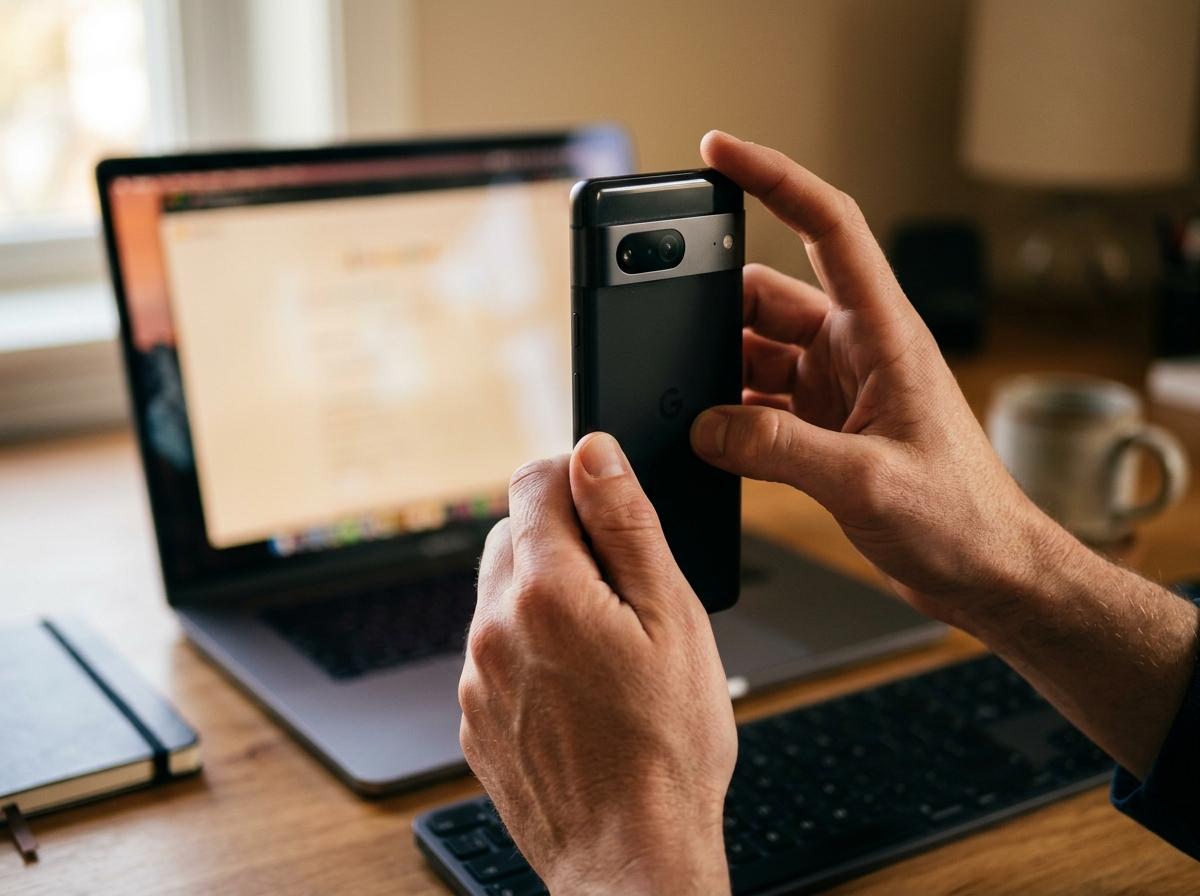
Step by step:
- On your computer, go to web.whatsapp.com. A QR code appears.
- On your phone, open WhatsApp.
- Open Linked Devices. On Android, tap the three-dot menu, then Linked Devices. On iPhone, tap Settings, then Linked Devices.
- Tap Link a Device. Unlock with your face, fingerprint, or PIN if asked.
- Scan the QR code on your computer screen with your phone's camera.
- Wait a few seconds while your chats load into the browser.
What breaks this: WhatsApp keeps linked devices active as long as your phone checks in at least once every 14 days. If your phone stays offline past that window, WhatsApp logs out your linked sessions and you will need to scan the QR code again. Keep your phone connected to the internet now and then and you will not hit this.
WhatsApp lets you link up to four devices plus your phone, so adding the browser does not push out your other sessions.
Why is WhatsApp Web better than your phone for scheduling messages?
WhatsApp Web gives you a full keyboard, a big screen, and the calm of working at a desk instead of thumbing a phone. You can write longer messages without typos, paste links cleanly, line up several sends in a row, and review everything before it goes out. For anything beyond a quick one-liner, the browser is simply the better cockpit.
The phone is built for replying in the moment. The browser is built for planning ahead. When you are setting up reminders, customer follow-ups, or a morning greeting, planning ahead is exactly what you are doing, and a scheduler that lives in WhatsApp Web meets you there.
There is also the matter of what the reported native feature would not do. From what has been described, the in-development "Schedule Send" is built around sending one message once. It is not expected to handle recurring sends, a queue of several scheduled messages, or delivery while your computer is closed — and in any case it is not available to use yet. A browser scheduler covers all of that today, which is why it remains the practical choice. If you also work from mobile, compare approaches in schedule WhatsApp messages on iPhone and Android without the app.
What happens to a scheduled message when you close the WhatsApp Web tab?
On the free tier, the scheduler runs inside your browser, so the WhatsApp Web tab needs to be open and your computer awake at send time. If you close the tab or your computer sleeps, the message waits and sends the next time the tab is open and active. To send with the browser fully closed, you need the Pro offline gateway.

What breaks this: A free in-browser scheduler is not magic. It needs the WhatsApp Web tab open and the computer awake to fire a message at the scheduled second. Close the laptop lid, quit the browser, or let the machine sleep, and a free scheduled message will hold until you are back. If your send time is 6 a.m. and your laptop is shut, plan for it: leave the tab open and the machine awake, or move up to the offline gateway below.
This is the single most common surprise people hit with any in-browser scheduler, so it is worth saying plainly. Free and in-browser means in-browser.
How do you schedule WhatsApp Web messages without leaving the browser open (Pro offline gateway)?
Blueticks Pro includes an offline gateway that sends your scheduled messages even when your browser and computer are closed. Instead of relying on your local tab, your queue runs on Blueticks infrastructure, so a 6 a.m. message goes out at 6 a.m. whether or not your laptop is awake. It is the upgrade for true set-and-forget scheduling.

With the free tier, you are the engine: the tab has to be open. With the Pro offline gateway, Blueticks is the engine. You schedule from WhatsApp Web as usual, then shut the lid and walk away. The message still sends.
This is what makes overnight reminders, early-morning customer pings, and weekend follow-ups actually dependable. You are no longer betting on your own computer being awake at the right minute.
Free vs. paid: which WhatsApp Web scheduler do you need?
If you schedule the occasional message and do not mind keeping a tab open, the free tier is plenty: it handles three scheduled messages at a time at no cost. If you need recurring messages, several queued at once, or sends that fire while your computer is closed, the Pro offline gateway is the upgrade that removes those limits.
Think of it as two questions. First, do you need more than three messages queued, or recurring sends? Second, do you need messages to go out while your computer is off? If the answer to either is yes, Pro is built for you. If not, free does the job. Either way, you are scheduling straight from WhatsApp Web today — something no native option lets you do yet.
You can compare both on the Blueticks pricing page and start on the free tier to see how it fits your routine.
Is WhatsApp building a native scheduler?
Reportedly yes, but it is in development and not available to users yet. WhatsApp is said to be working on a native "Schedule Send" option, but it is not in a public beta you can opt into, and it would only send a single message once. Recurring messages, a multi-message queue, and guaranteed offline delivery would still be outside its scope. A browser extension covers all of that today.
Here is the accurate picture, based on what has actually been reported. WABetaInfo and outlets like MacRumors noted in 2026 that WhatsApp is developing a feature to schedule messages, aimed first at personal accounts on mobile. As described, it would let you pick a date and time for a single message that is then queued and sent automatically. The important caveat: features like this are under development and may change or be dropped before release — and crucially, this one is not yet available to users, even in a stable beta.
A few things follow from that. There is no native scheduler you can use in WhatsApp Web today. Even if the personal-account feature ships, it is described as deliberately minimal — one message, one time — with no sign of recurring schedules, no queue of several pending messages you compose in one sitting, and no confirmed desktop support. Some 2026 guides claim it is already "live" or "rolling out in beta," but that goes beyond what the reporting supports, so treat those claims with caution.
What does not change is the practical answer for today. If you want to schedule from WhatsApp Web right now, on any account, and you want recurring sends, multiple queued messages, or delivery while your computer is closed, a browser extension is the way to do it. A native feature, if and when it arrives, would be a welcome start — not a replacement for a real scheduling workflow.
"People assume the native option, whenever it finally arrives, will do everything. But what's been described sends one message, once, on personal accounts. The folks who actually run their week on WhatsApp need recurring reminders and a queue they can set up in one sitting from the browser. That gap is exactly where an extension earns its keep." — Blueticks support lead (illustrative)
FAQ
Is there a native scheduler built into WhatsApp Web? No. A native "Schedule Send" feature is reportedly in development (per WABetaInfo and others in 2026), but it is aimed at personal accounts on mobile, is not yet available to users, and is not in a public beta. There is no native scheduler in WhatsApp Web today. For scheduling on WhatsApp Web now, with recurring and offline options, use a browser extension like Blueticks.
Do I need to install anything to schedule on WhatsApp Web? Yes. To schedule reliably today you add a browser extension to Chrome, Edge, Firefox, or another Chromium browser. It installs in a few clicks and adds a clock icon to the WhatsApp Web message box. There is a free tier, so you can try scheduling without paying.
Will my scheduled message send if I close my laptop? On the free tier, no. The scheduler runs in your browser, so the WhatsApp Web tab must be open and your computer awake at send time. To send with everything closed, use the Blueticks Pro offline gateway, which runs your queue on Blueticks infrastructure.
Can I schedule recurring WhatsApp Web messages? Yes, with a browser extension. Blueticks supports one-time and recurring schedules, so you can repeat a message daily, weekly, or on a custom pattern. The native WhatsApp beta does not offer recurring sends, which is one of the main reasons people use an extension.
How many devices can I link to WhatsApp Web? WhatsApp lets you link up to four devices plus your phone. Linked sessions stay active as long as your phone checks in online at least once every 14 days. If it stays offline longer than that, you will need to rescan the QR code to relink.
Ready to schedule your first message? Open Blueticks, add the extension, and send your next WhatsApp Web message on your schedule, not your memory.